KB: How to download M3U8 URLs
To download an M3U8 URL you either need to click the 'Add' button (see below) or use the Find web browser.
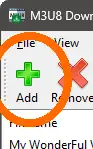
Following either of these paths will show the 'Add URL' window:
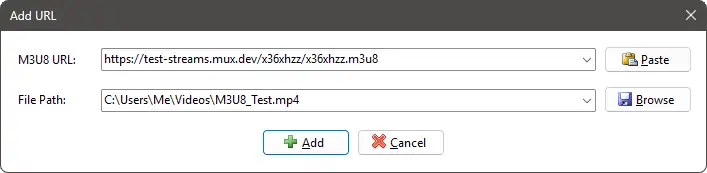
If the 'Add URL' window was launched from the Find web browser then the URL will be pre-populated.
Now enter or browse to where you would like to save the resultant MP4 file to.
Finally, click the 'Add' button. This will then download the specified M3U8 file and analyse it. If this is a master M3U8 file with multiple streams defined then you will be presented with the 'Select Stream' window to choose which stream to download.
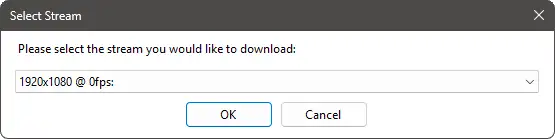
Select the desired stream and click 'OK'.
The download will then be added to the downloads list on the main window. If your options allow it, the download may start straight away or be queued.
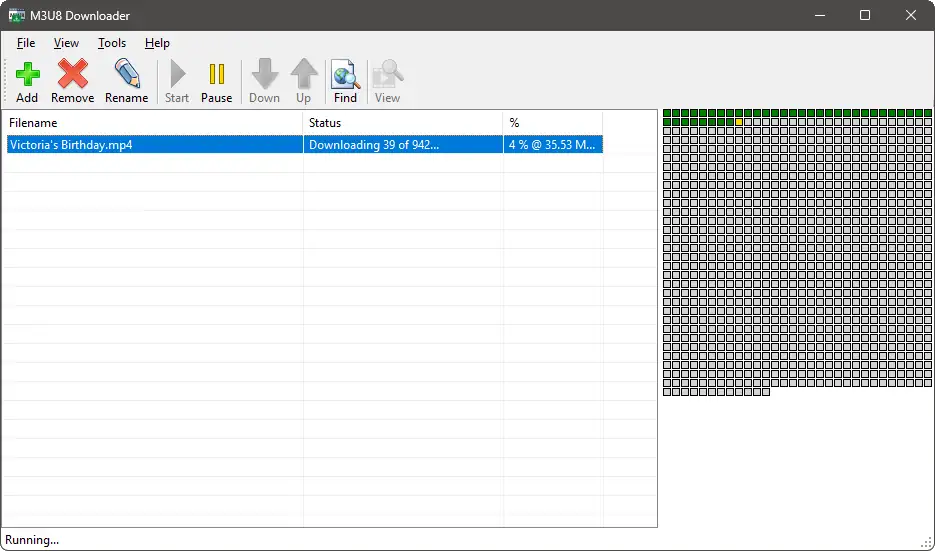
Clicking on a download will display the download progress, if enabled (as shown above).
You can view additional information about the download by right-clicking the download and selecting 'View Details...'.
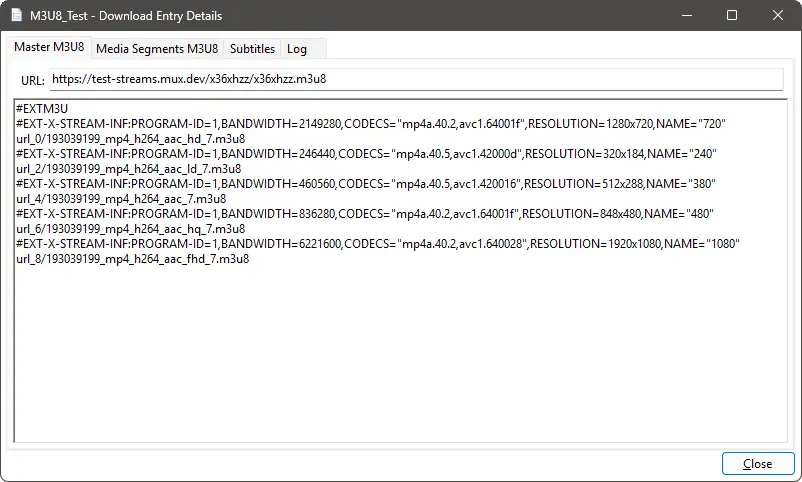
This contains lots of useful information regarding the download, including a log, which can be very useful to debug download issues.
When a download has completed, it will immediately be stitched together to produce the resultant MP4 file, which will get saved to the location you selected earlier.
When the stitching process has completed, it will be marked as "Complete" in the downloads list.
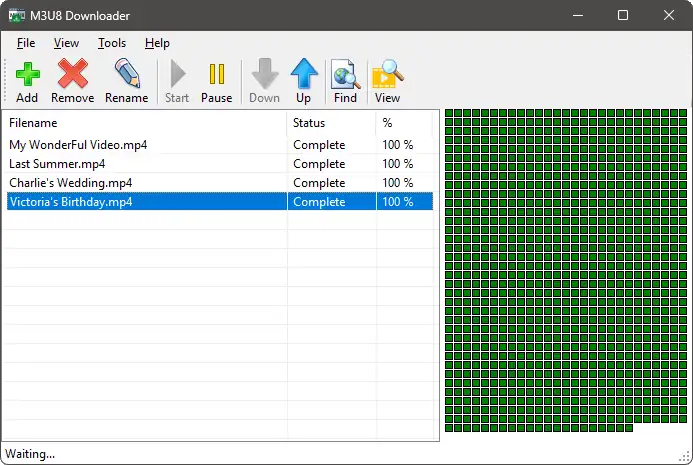
Double-clicking a "Complete" download will launch the resultant MP4 file in your system configured video player.