KB: How to find M3U8 URLs in web pages
M3U8 Downloader has a built-in web browser for detecting M3U8 URLs in web pages.
The Find web browser can be launched by clicking the 'Find' button on the toolbar of the main window:
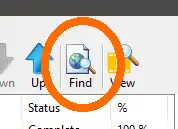
This will launch the Find web browser, which is a simple tabbed Chromium web browser with basic navigation functions and stripped down functionality.
NOTE: This version of Chromium does not support video playback. However, it will still detect M3U8 URLs.
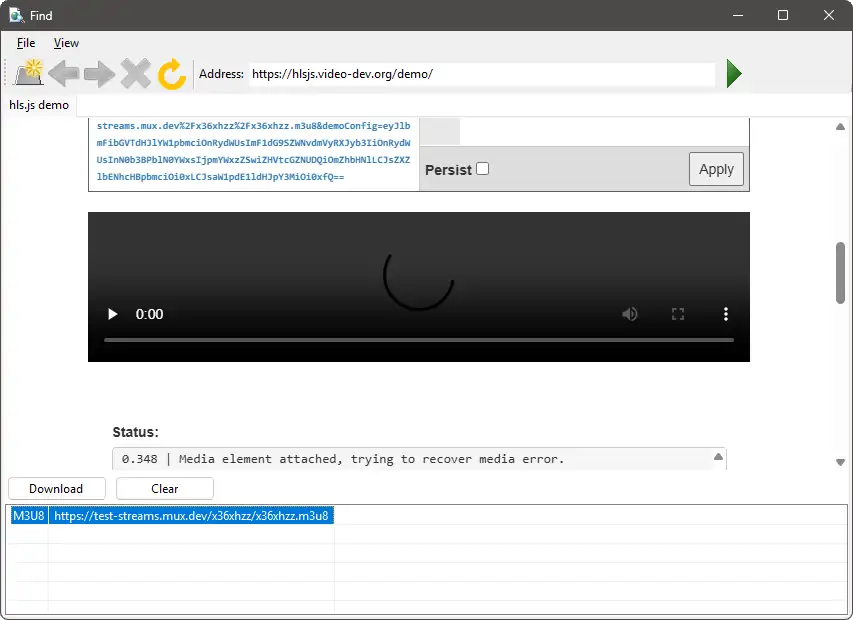
So, like any normal web browser, open a new tab, enter a URL in the address bar, and either hit Enter or click the Go button to navigate to the specified URL. Then, use the web site as normal, and try to play the desired video. This should detect the M3U8 URL and display in the list at the bottom of the browser tab. You may need to try to play the video in order for the detection to occur.
This web browser will also detect any subtitle files present and include them in the download list.
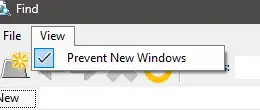
In the 'View' there is a feature for preventing new windows being created, e.g. adverts.
Once you have found the desired M3U8 URL, select it in the download list and click the 'Download' button. If there were any subtitle files detected then the 'Select Subtitles' window will appear:
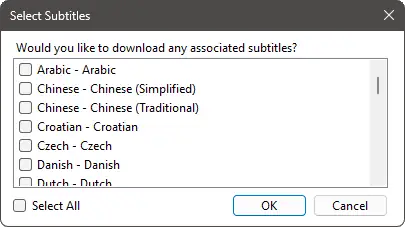
Selecting any subtitles is optional. If you do not wish to download any then leave them all unchecked and click 'OK'
This will then launch the 'Add URL' window. See 'How to download M3U8 URLs' for the next step.