Fylux - Free Windows Explorer-Style File Manager for Linux
Latest version: v1.0.26.11130
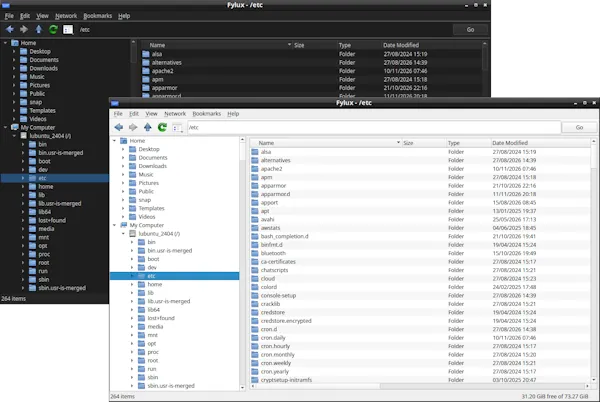
Fylux is a free file manager for Linux, built around the familiar two-pane layout of Windows Explorer - a navigation tree down the left for your home folder, drives and network locations, and a sortable, detailed file list on the right.
It handles everyday file management the way you would expect - copy, cut, paste, rename, delete (with Trash support where the underlying filesystem provides one), drag-and-drop between folders, multi-select, undo, and creating new folders or files from your own template documents. Larger jobs are covered too: thumbnail views for browsing pictures, one-click compression into zip, tar and 7-Zip archives, and a Properties dialog for permissions and ownership.
Network shares are treated the same way as any local folder. Connect to an smb:// server, browse its shares, and move around them with the same navigation, bookmarking and file operations you would use locally - with fast, native listing performance rather than the sluggishness a mounted network share usually brings with it.
Features
Navigating
- Familiar two-pane layout: a folder tree on the left (Home, My Computer with your drives, and Network), and a sortable file list on the right
- Three views - Details, Large Icons and Extra Large Icons - switchable from the toolbar or the View menu
- Picture thumbnails in the icon views, shared with the standard Linux thumbnail cache so images you have already browsed in other file managers appear instantly
- Sort by Name, Size, Type or Date Modified; optionally show Owner, Group and Permissions columns, and show or hide hidden files
- Back, Forward and Up buttons, Refresh, and an editable address bar
- The My Computer list keeps itself up to date as drives are connected, disconnected or mounted - no need to restart or refresh by hand
- Bookmarks for any folder or network location - add one from the folder tree's right-click menu, jump straight to it from the Bookmarks menu, and rename, retarget or reorder them from Manage Bookmarks
Managing files
- Copy, cut, paste, rename and delete, with drag-and-drop between any two locations - or drag with the right mouse button to choose Move, Copy or Link when you drop
- Deleted files go to the Trash where the underlying filesystem supports it
- Undo (Ctrl+Z) for your recent moves, Trash deletions, renames and new folders - the menu item tells you exactly what it is about to undo
- New folders, and new files created from your own template documents
- An overwrite confirmation that shows the size and modified date of both the existing file and its replacement, so you know exactly what you are about to overwrite
- Familiar keyboard shortcuts: Ctrl+X / Ctrl+C / Ctrl+V, Ctrl+A, F2 to rename, F5 to refresh, Delete, and Ctrl+Shift+N for a new folder
Opening, running and inspecting
- Open with - choose from every application installed that can open a file, or pick another one
- Run executable files straight from the file list, or Run as Root with a standard administrator password prompt
- A Properties dialog showing type, location, size (calculated for whole folders), and modified and created dates
- View and change a file's permissions, owner and group from the Properties dialog's Permissions tab
Compressing files
- Right-click any selection and choose Compress to create an archive in one click, or choose Add to archive... for full control
- Formats: Zip, Tar, Tar + gzip, Tar + bzip2, Tar + xz and 7-Zip
- Choose Fast, Normal or Best compression
- Optional password protection - zip's standard encryption for maximum compatibility, or real AES-256 encryption in a 7-Zip archive
- A progress dialog you can cancel, and an overwrite check if the archive already exists
Network and SMB shares
- Connect to any smb:// server from the Network menu, or an already-mounted network share
- Browse servers, shares, folders and files exactly like a local drive, with credential prompts handled for you and remembered for the rest of your session
- Fast, native listing performance even for large folders on a network share
- Connected servers stay in the folder tree under Network, ready to bookmark
Personalisation and updates
- Dark Mode, applied consistently across every Linux desktop - even ones whose own theming Qt does not fully integrate with - and switchable instantly from the View menu
- An Options dialog to control Dark Mode, which optional columns are shown, and whether Fylux checks for updates automatically
- Built-in update checking, with a one-click self-update when a new version is available
- Works on desktops that report no monitor at all, such as a headless machine used through a remote-desktop service - Fylux detects this and works around it so its menus still appear
Why choose Fylux
Most Linux desktops already ship a file manager, but network browsing is often an afterthought - slow, or bolted on through a separate mount step before you can do anything useful. Fylux treats network shares as first-class locations from the start, with the same navigation, bookmarking and file operations as any local folder - and wraps them in a layout that anyone who has used Windows Explorer will recognise straight away.
It is free to download and use, with nothing locked away.
System requirements
- A modern Linux desktop - developed and tested on Ubuntu 24+
- Qt6 (installed automatically as a dependency of the .deb package)
- GVFS with its network backends, for browsing network/SMB shares (the gvfs-backends package, installed automatically as a recommended package)
- Optional: the zip and p7zip-full packages, if you want to create Zip or 7-Zip archives (Tar-based archives need nothing extra)
- PolicyKit (pkexec), used by Run as Root - installed automatically on most desktops
Support Fylux
Fylux is free. If you find it useful and would like to help fund its continued development, a donation of any amount is very much appreciated - it is entirely optional and unlocks nothing.
Screenshots
Support
Something not working, or an idea for improving Fylux? You can report a bug or send feedback from the Help menu inside Fylux, or from the support section of this website.
Downloads

| Filename: | fylux_1.0.26.11130_Ubuntu24_amd64.deb |
| Size: | 320.32 kB |